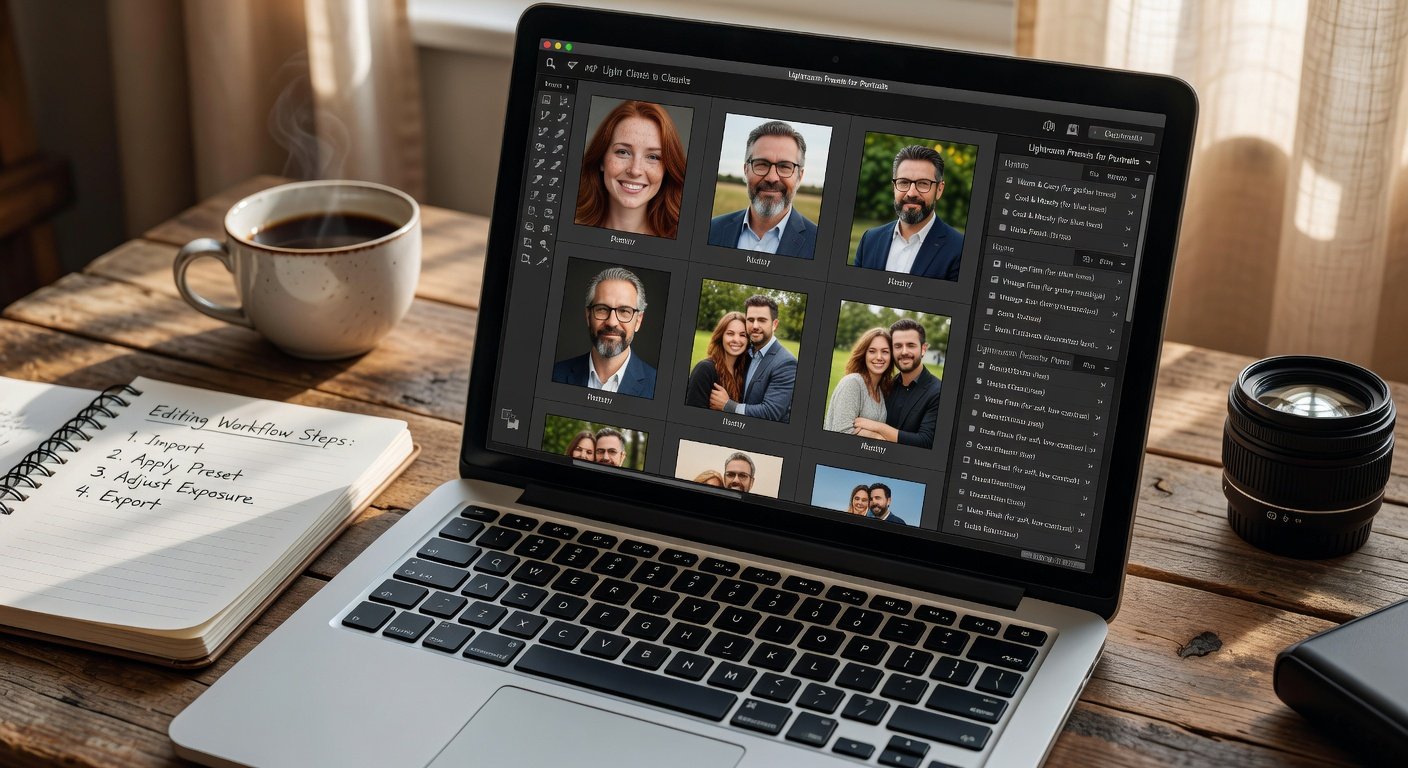
Most portrait photos fail because they look flat, dull, or inconsistent in color tone. People try manual editing in Lightroom but waste hours adjusting exposure, skin tones, and contrast and still don’t get a “professional look”.
That is exactly where lightroom presets for portraits solve the problem.
Instead of editing from scratch, you apply a ready-made style that instantly enhances skin tones, lighting balance, and background mood. It is the fastest way to turn normal portraits into studio-level results without advanced editing skills.
What is Lightroom Presets for Portraits?
Lightroom presets for portraits are pre-saved editing settings in Adobe Lightroom that automatically apply a complete photo style to portrait images.
In simple words:
You click one preset, and your photo gets edited instantly.
These presets control:
- Skin tone correction
- Brightness and contrast
- Color grading
- Shadows and highlights
- Background mood
They are designed specifically for human faces and portrait photography, unlike general filters that often ruin skin tones.
Why It Matters
Let’s be honest. Most people struggle with portrait editing because:
- Skin looks too orange or too grey
- Lighting is uneven in photos
- Editing takes too much time
- Photos don’t look consistent on Instagram
- Beginners don’t understand curves and HSL
Real-life use cases:
- Wedding photographers fixing 200+ photos quickly
- Influencers maintaining a consistent Instagram feed
- Students editing DSLR or mobile portrait shots
- Freelancers delivering client work faster
This is why tools like portrait presets and lightroom free presets for portraits are widely used in 2026 workflows.
Key Features of Lightroom Presets for Portraits
These are not just filters. They are full editing systems.
- One-click professional portrait enhancement
- Skin tone correction for natural look
- Background color balancing
- Exposure and light adjustment
- Sharpness control for face clarity
- Mood-based color grading
- Works on RAW and JPEG files
- Mobile and desktop compatibility
Key benefit:
You save 80% editing time while improving consistency.
Types of Lightroom Presets for Portraits
1. Natural Portrait Presets
Focus on realistic skin tones and clean edits.
Best for corporate headshots and personal branding.
2. Cinematic Portrait Presets
Dark tones, dramatic contrast, emotional mood.
Often similar to cinematic lightroom presets used in storytelling photography.
3. Outdoor Portrait Presets
Optimized for sunlight, parks, beaches, and travel shots.
Many creators use free lightroom presets for outdoor portraits for Instagram reels.
4. Studio Portrait Presets
Controlled lighting effect, smooth skin, clean background separation.
5. Artistic / Film Look Presets
Inspired by analog film tones and vintage grading.
Related styles include filmic lightroom presets and cinematic preset lightroom free packs.
Comparison
| Feature | Natural Presets | Cinematic Presets | Filmic Presets |
|---|---|---|---|
| Skin Tone Accuracy | High | Medium | Medium |
| Mood Effect | Low | High | High |
| Best Use | Corporate, clean portraits | Instagram, storytelling | Creative, vintage look |
| Editing Intensity | Light | Medium | Strong |
| Beginner Friendly | Yes | Medium | Medium |
Pros and Cons (Honest Breakdown)
| Pros | Cons |
|---|---|
| Saves editing time | Overuse can create similar-looking photos |
| Beginner friendly | Needs adjustment for different lighting |
| Consistent results | Some presets don’t fit all skin tones |
| Professional output | Free packs may lack quality control |
No tool is perfect. Presets speed up work, but bad usage can make all photos look identical.
How to Choose the Right Lightroom Presets for Portraits
Ignore confusion and follow this simple checklist:
Step 1: Identify your goal
- Instagram aesthetic → cinematic presets
- Client work → natural portrait presets
- Travel content → outdoor portrait presets
Step 2: Check skin tone compatibility
Not all presets work on all skin tones. Always test first.
Step 3: Look for flexibility
Good presets allow adjustments after applying.
Step 4: Check lighting conditions
Indoor and outdoor photos need different presets.
Step 5: Download trusted packs only
Avoid random low-quality free files.
Pro tip:
If you want cinematic results, explore cinematic preset lightroom free or best filter lightroom options, but always adjust manually after applying.
Best Use
Hobbyists (22–40 years)
These users edit family photos and want a “pro look” without learning editing tools.
- Platforms: Instagram, Pinterest
- Budget: $5–$15 packs
- Need: Simple one-click results
Content Creators & Influencers (18–32 years)
They post daily and need fast editing workflows.
- Platforms: TikTok, Instagram Reels
- Budget: $20–$45 bundles
- Need: Consistent aesthetic feed
Before/after reels work extremely well for this group.
Professional Photographers (28–50 years)
They handle weddings, portraits, and client deliveries.
- Platforms: Google SEO, YouTube demos
- Budget: $40–$100+ premium packs
- Need: Accuracy + speed + consistency
They usually combine portrait photography presets with manual editing for final polish.
Why Choose Oncepik
Most presets online are either over-edited or inconsistent. The problem is not availability, it is quality control.
A good system focuses on:
- Real skin tone preservation
- Lighting adaptability
- Clean, non-destructive editing
- Workflow speed for professionals
Compared to random free packs, structured systems inspired by cinema lens color grading logic or even cinema lens sony e mount style color science give more realistic output.
If your goal is professional consistency, not just filters, you need curated presets not random downloads.
Common Mistakes to Avoid
Most people fail with presets for predictable reasons:
- Using cinematic presets on all portraits
- Not adjusting exposure after applying preset
- Ignoring white balance correction
- Over-smoothing skin (looks fake)
- Using low-quality free presets without testing
- Applying same preset to all lighting conditions
If you avoid these mistakes, your results improve immediately.
Conclusion
Lightroom presets for portraits are not magic, but they are a major shortcut. They help you edit faster, maintain consistency, and achieve professional-level results without deep Lightroom skills.
But here is the truth:
Presets only work if you understand when and how to use them. Random application kills quality.
Start simple. Test natural presets first. Then move toward cinematic and film styles like filmic lightroom presets or cinematic lightroom presets when you understand lighting better.
If your goal is better photos, not just faster editing, this is the right tool. Use it properly.
FAQs
1. What are Lightroom presets for portraits?
They are pre-made editing settings that automatically enhance portrait photos with one click.
2. Are free Lightroom presets good?
Some are useful, especially lightroom free presets for portraits, but quality varies a lot.
3. Can I use presets on mobile?
Yes, Lightroom Mobile supports presets fully.
4. Do presets work on all photos?
No. Lighting and skin tone affect results. You must adjust after applying.
5. What is the best preset style for Instagram?
Cinematic and film styles are most popular for aesthetic feeds.
6. Are portrait presets better than manual editing?
They are faster, but manual editing gives more control.
7. Where should beginners start?
Start with natural portrait presets before moving to cinematic styles.